Adding the SNMP community in Prism Element
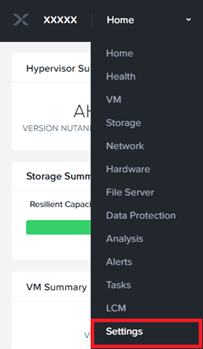
- Log in to Prism Element and open the Settings menu:
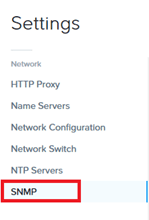
- Then, under Network, open the SNMP page:
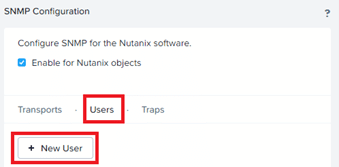
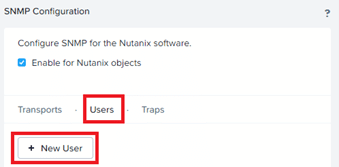
- In the main part of the page, choose the Users tab, then click New User:
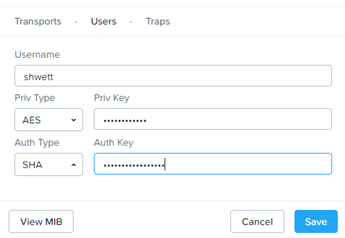
- Enter the UserName and the 2 keys, then click Save:
Adding the SNMP community in the extranet
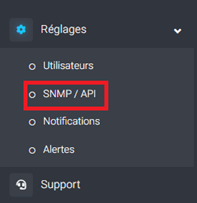
- Log in to the Shwett extranet: https://extranet.shwett.com and go to the SNMP / API page:
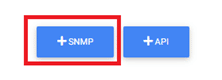
- Then click the SNMP button in the middle of the page:
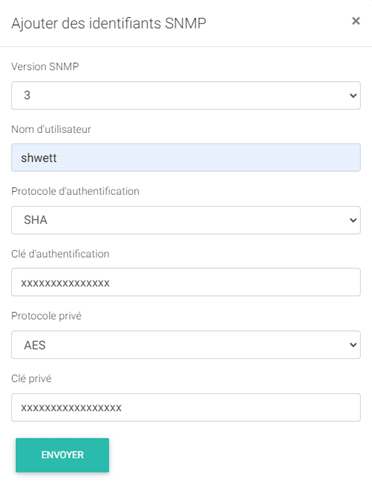
- In the pop-up, choose SNMP version 3, then fill in the fields with the user name entered in Prism Element and the keys:
- Click SEND to finish
Creating the user account in Prism Element
- Log in to Prism Element and open the Settings menu:
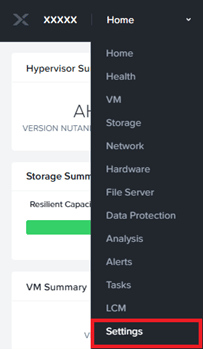
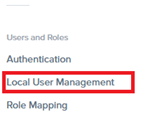
- Then, under Users and Roles, open the Local User Management page
- Click the New User button:
- Fill in the requested information: user name, last name, first name, email and password:
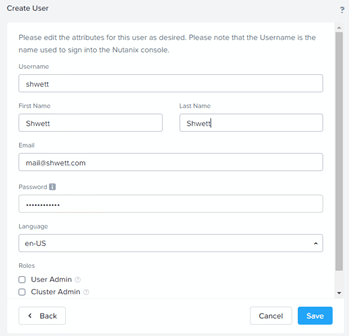
- Confirm by clicking Save.
Adding the Nutanix API in the extranet
- Log in to the Shwett extranet: https://extranet.shwett.com and go to the SNMP / API page:
- Then click the API button in the middle of the page:
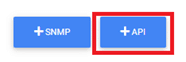
- In the pop-up that opens, choose Nutanix then Prism Element:

- Then enter the Prism Element IP address, its port and the credentials of the user created earlier:
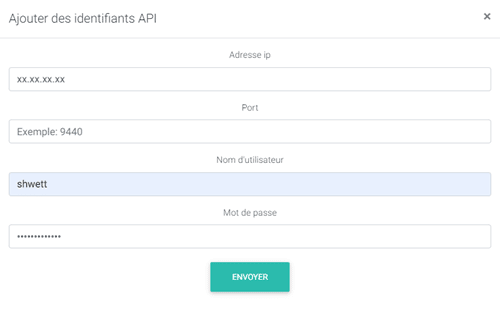
- Finish by clicking Send
All steps are now complete: SHWETT can query the Nutanix API and retrieve hypervisors, vSwitches and VMs.
Leave a Reply