
Category: Technical documentation

  • Adding a notification in Microsoft Teams

    Adding a notification in Microsoft Teams

    Generating the link in Microsoft Teams

    1. Log in to Teams and create a channel in the team where you want to receive Shwett alerts:
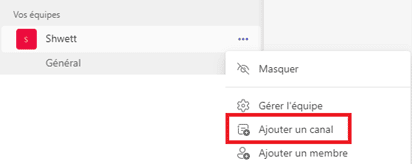
    Adding a channel to set up monitoring notifications in Teams

    Enter the channel name and description
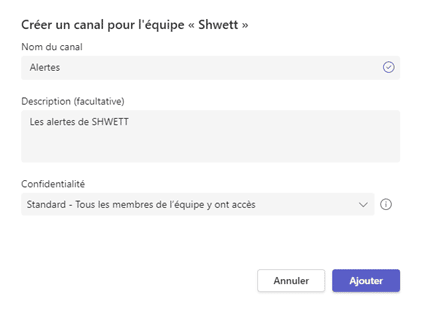
    Creating a Shwett team channel to configure alerts in Microsoft Teams
    1. Once the channel is created, click the 3 dots next to it and choose Connectors:
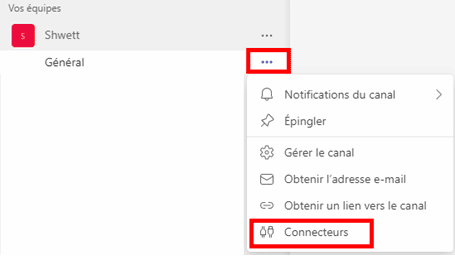
    Choosing a connector in Microsoft Teams for Shwett monitoring alerts
    1. In the pop-up, click Configure next to the Incoming Webhook connector:
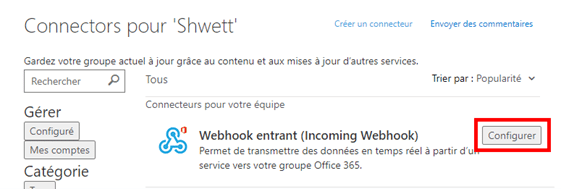
    Configuring connectors in Microsoft Teams for Shwett monitoring alerts
    1. To configure the connector, simply enter a name and click Create:
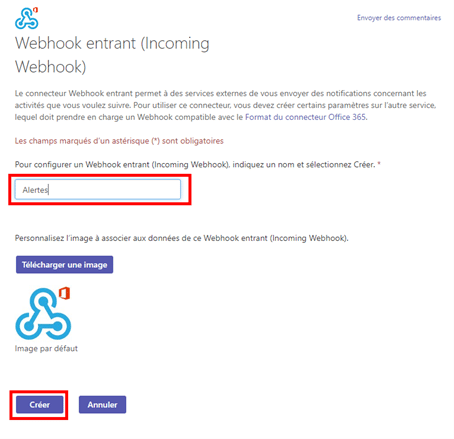
    Creating and configuring the incoming webhook for Shwett notifications in Microsoft Teams
    1. After clicking Create, a URL appears in the same pop-up; keep it for the next steps:
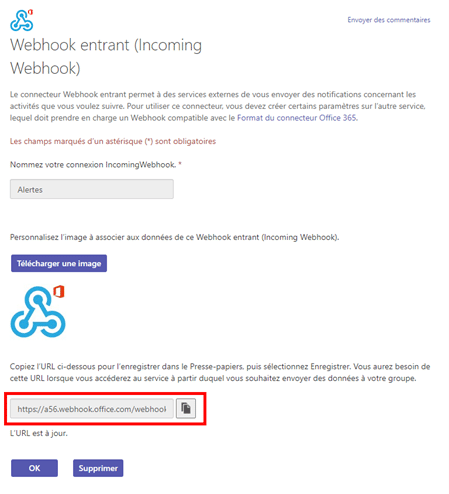
    Copying the webhook URL to set up Shwett monitoring notifications in Microsoft Teams

    Configuring Teams notifications in the Shwett extranet

    1. Log in to the Shwett extranet: https://extranet.shwett.com and go to the Notifications page:
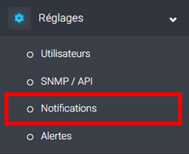
    Configuring Teams notifications in the Shwett extranet
    1. On the page that opens, click the Add button:

    Add button in the Shwett interface to add a monitoring notification
    1. In the pop-up, paste the link generated in Teams into the URL field, enter a name, choose the channel and select which alert types to receive through it. Finally, click ADD to create the notification:
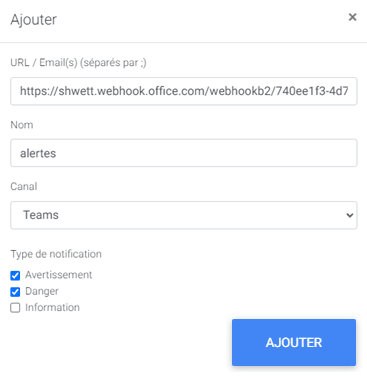
    Finalizing Shwett notifications in Microsoft Teams
  • Adding a notification in Slack

    Generating the link in Slack

    1. Log in to Slack and create a channel where you will receive Shwett alerts:
    2. Once the channel is created, click Add apps on the left, then App directory on the right:
    Adding apps to configure Slack notifications
    App directory for configuring Slack alerts
    1. In the new window, click Build at the top right:
    Creating an app to configure Slack alerts
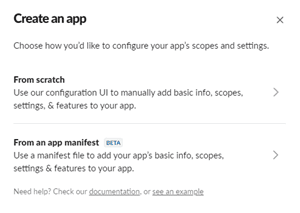
    1. A pop-up appears; click From scratch:
    Creating an app to configure Slack alerts
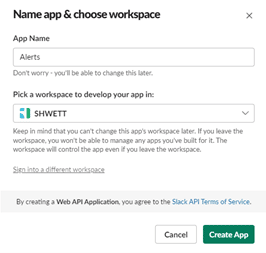
    1. Enter the app name and choose the workspace:
    Generating the link in Slack – Shwett
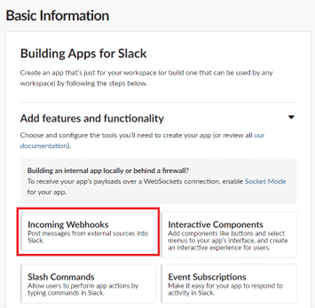
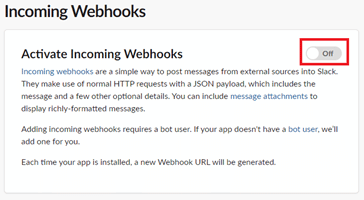
    1. On the page, choose the Incoming Webhooks feature:
    Generating the link in Slack – Shwett
    1. Activate the webhook with the toggle on the right:
    Activating the webhook for Slack alerts in Shwett
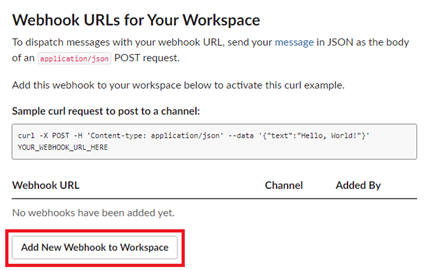
    1. At the bottom of the page, click Add New Webhook to Workspace:
    Adding the Slack workspace webhook
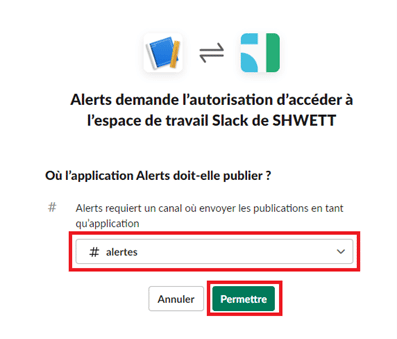
    1. Then choose the channel created in step 1 and click Allow:
    Generating the link in Slack – Shwett
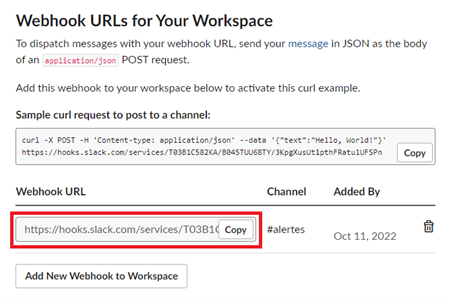
    1. The link is now available on the page:
    Generating the link in Slack – Shwett

    Configuration in the Shwett extranet

    1. Log in to the Shwett extranet: https://extranet.shwett.com and go to the Notifications page:
    Configuration in the Shwett extranet
    1. On the page that opens, click the Add button:
    Add button in the Shwett interface to add a Slack monitoring notification
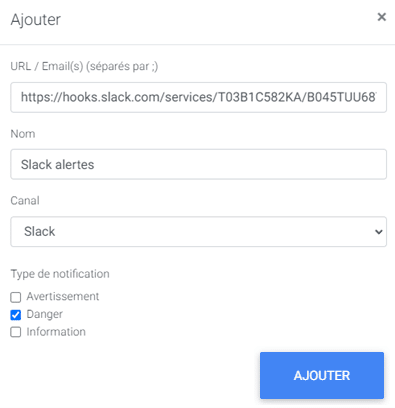
    1. In the pop-up, paste the link generated in Slack into the URL field, enter a name, choose the channel and select which alert types to receive through it. Finally, click ADD to create the notification:

    Creating an alert type for Slack monitoring notifications
  • Nutanix API configuration

    Adding the SNMP community in Prism Element

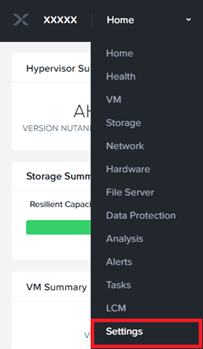
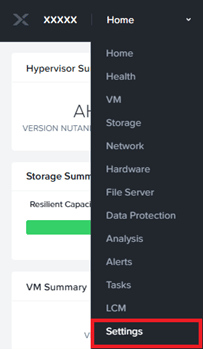
    1. Log in to Prism Element and open the Settings menu:
    Settings menu for configuring the Nutanix API
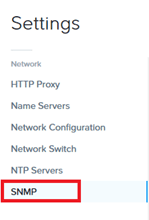
    1. Then, under Network, open the SNMP page:
    Adding the SNMP community in Prism Element – Shwett
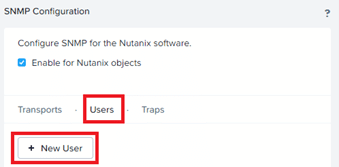
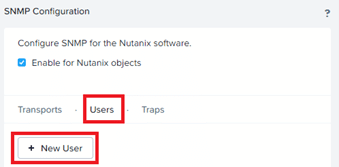
    1. In the main part of the page, choose the Users tab, then click New User:
    Adding the SNMP community in Prism Element – Shwett
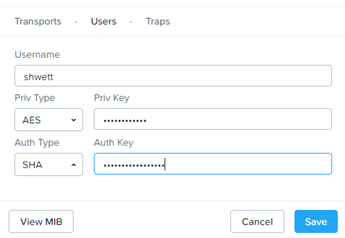
    1. Enter the UserName and the 2 keys, then click Save:
    Adding the SNMP community in Prism Element – Shwett

    Adding the SNMP community in the extranet

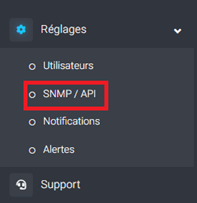
    1. Log in to the Shwett extranet: https://extranet.shwett.com and go to the SNMP / API page:
    Configuring an SNMP community in the Shwett extranet
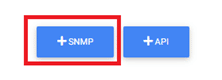
    1. Then click the SNMP button in the middle of the page:
    Button for adding an SNMP community in the Shwett extranet
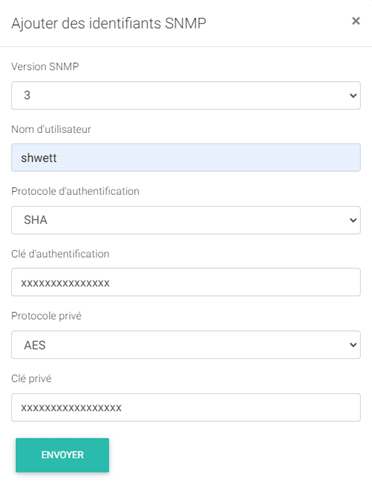
    1. In the pop-up, choose SNMP version 3, then fill in the fields with the user name entered in Prism Element and the keys:
    Adding the SNMP community in the extranet – Shwett
    1. Click SEND to finish

    Creating the user account in Prism Element

    1. Log in to Prism Element and open the Settings menu:
    Settings in the Prism Element menu for API connection
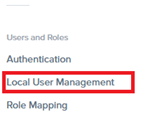
    1. Then, under Users and Roles, open the Local User Management page
    Local user management for Nutanix API configuration
    1. Click the New User button:
    Creating the user account in Prism Element – Shwett
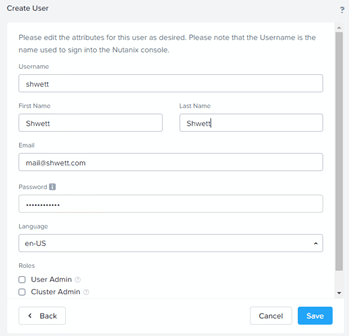
    1. Fill in the requested information: user name, last name, first name, email and password:
    User name and password for Nutanix API configuration
    1. Confirm by clicking Save.

    Adding the Nutanix API in the extranet

    1. Log in to the Shwett extranet: https://extranet.shwett.com and go to the SNMP / API page:
    Configuring an SNMP community in the Shwett extranet
    1. Then click the API button in the middle of the page:
    Adding the Nutanix API in the extranet – Shwett
    1. In the pop-up that opens, choose Nutanix then Prism Element:
    Choosing Nutanix for the Shwett API configuration
    Choosing Prism Element for the API configuration
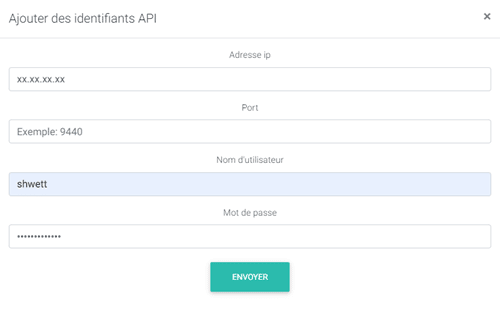
    1. Then enter the Prism Element IP address, its port and the credentials of the user created earlier:
    Entering the IP address for Nutanix API configuration
    1. Finish by clicking Send

    All steps are now complete: SHWETT can query the Nutanix API and retrieve hypervisors, vSwitches and VMs.

  • SNMP configuration

    Adding an SNMP community in the extranet

    1. Log in to the Shwett extranet: https://extranet.shwett.com and go to the SNMP / API page:
    Configuring an SNMP community in the Shwett extranet
    1. Then click the SNMP button in the middle of the page:
    Button for adding an SNMP community in the Shwett extranet
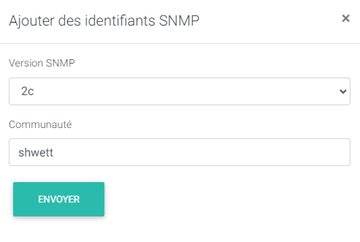
    1. In the pop-up, choose the SNMP version you want (1, 2c or 3), then fill in the required fields: the user name and, for version 3, the keys:

    SNMP versions 1 and 2c:

    Adding an SNMP community in the extranet – Shwett

    SNMP version 3:

    Adding an SNMP community in the extranet – Shwett
    1. Click SEND to finish.
  • Installing a monitoring probe

    Downloading the probe (ISO)

    1. Download the virtual machine ISO from the Shwett extranet (probe page):
    Installing the Shwett monitoring probe
    1. Upload the ISO to the image section of your portal.

    Creating the VM (virtual machine)

    1. Create a virtual machine from your portal with the following configuration: 1 vCPU, 1 core, 1 GB of RAM.
    1. Add a CD-ROM drive and attach the ISO uploaded earlier.
    1. Add a disk with 16 GB of capacity.
    1. Add a network interface with internet access.
    1. Finish creating the virtual machine.

    Logging in and activating the monitoring probe

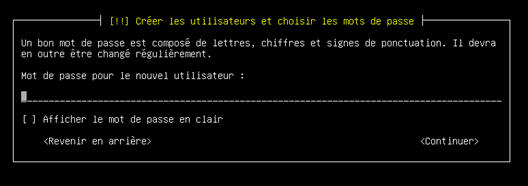
    1. Installation starts automatically; you only need to enter a password of your choice for the user:
    Choosing the password when installing the Shwett monitoring probe
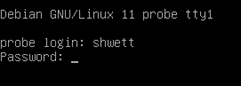
    1. Once installation is complete, simply log in with the user shwett and the password you entered:
    User login when installing the Shwett monitoring probe
    1. See the probe activation section to activate it.