

Generating the link in Microsoft Teams
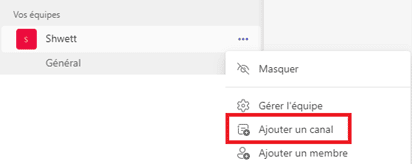
- Log in to Teams and create a channel in the team where you want to receive Shwett alerts:
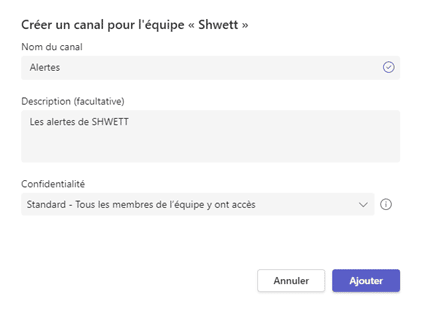
Enter the channel name and description
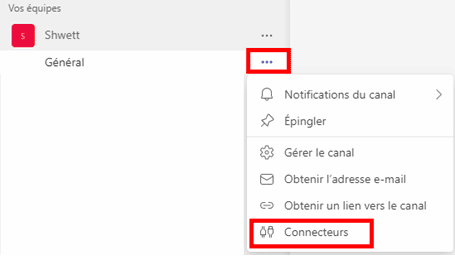
- Once the channel is created, click the 3 dots next to it and choose Connectors:
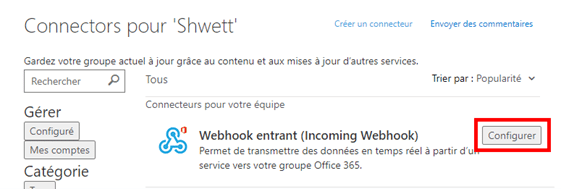
- In the pop-up, click Configure next to the Incoming Webhook connector:
- To configure the connector, simply enter a name and click Create:
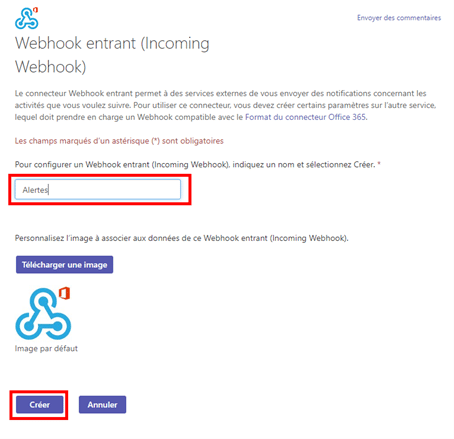
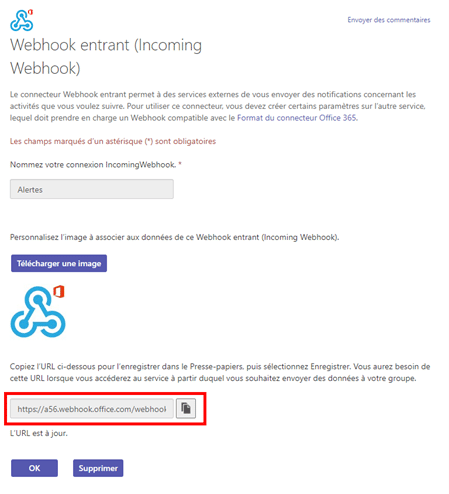
- After clicking Create, a URL appears in the same pop-up; keep it for the next steps:
Configuring Teams notifications in the Shwett extranet
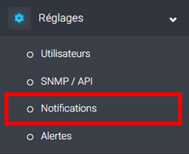
- Log in to the Shwett extranet: https://extranet.shwett.com and go to the Notifications page:
- On the page that opens, click the Add button:
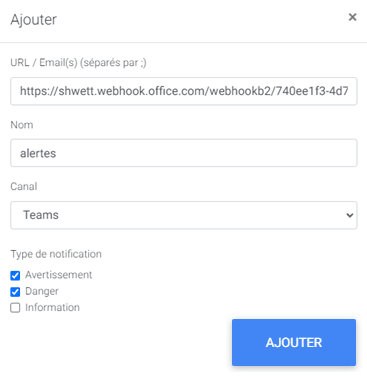
- In the pop-up, paste the link generated in Teams into the URL field, enter a name, choose the channel and select which alert types to receive through it. Finally, click ADD to create the notification:
Leave a Reply